
Generate image and videos with AI: A guide to quickly setup ComfyUI on Lightning AI
This comprehensive guide will show how you can quickly setup ComfyUI with GPU on Lightning AI and start generating Images and Videos with ease. Find out how you can access free GPU hours and generate for free *
 Praweg Koirala
In this blog we will quickly set up ComfyUI on Lightning AI to generate Images and Videos. The Platform makes it easy to get onboard and set up quickly compared to old traditional big cloud Computing platforms like AWS, GCP etc. If you are completely new to Lightning AI and ComfyUI , lets quickly dive into it and get started with the actual meaty part.
What is Lightning AI?
Lightning AI is a cloud computing platform that focuses primarily on AI & machine learning workloads. It supports cloud computing with GPU access and provides access to all types of GPU use via different cloud providers.
What is ComfyUI ?
ComfyUI is an open source project, a web application, based on Python. It is one of the most popular AI image and video generating tool that uses node based UI and relatively user friendly. The node based UI means you do not necessarily have to know all the complex machine, learning libraries, and algorithms. With tons of extensions you can easily add most of the features you need to further extend it as per your use case. If you are an advanced user and comfortable with python/ML programming you will be able to build your own extensions and customizations.
Getting started with Lightning AI.
If you don't already have an account , creating new account is easy and free to start. Lightning AI provides free monthly credits (15 credits) which can be used in the compute costs. Just go to Lightning.AI and start free with your email , github or sso. If you have a work email or .edu email it says the verification will be faster. so if you have one of those email use those , if not any email should work just fine.
Lightning AI acts as a portal to provide GPU access from different vendors and hence it is easy to find different types of GPU from diffrent vendors at different rates. Since GPU's costs significantly higher than normal CPU computes , if you keep your instance running 24/7 this can quickly add up cost and hence become impractical for novice users . Thankfully Lightning AI has a feature to protect users from this. If your GPU instance stays idle for 15 minutes the instance is automatically terminated and not charged for use. You also have option to stop the instance after each use manually, so that you are only billed for actual hour the GPU is used.
Setting up ComfyUI
Now once you are logged into your account, on the left hand side you will see your profile info ,along with several options.
- Under My work select my studios
- Create a new studio with +New Studio button on top.
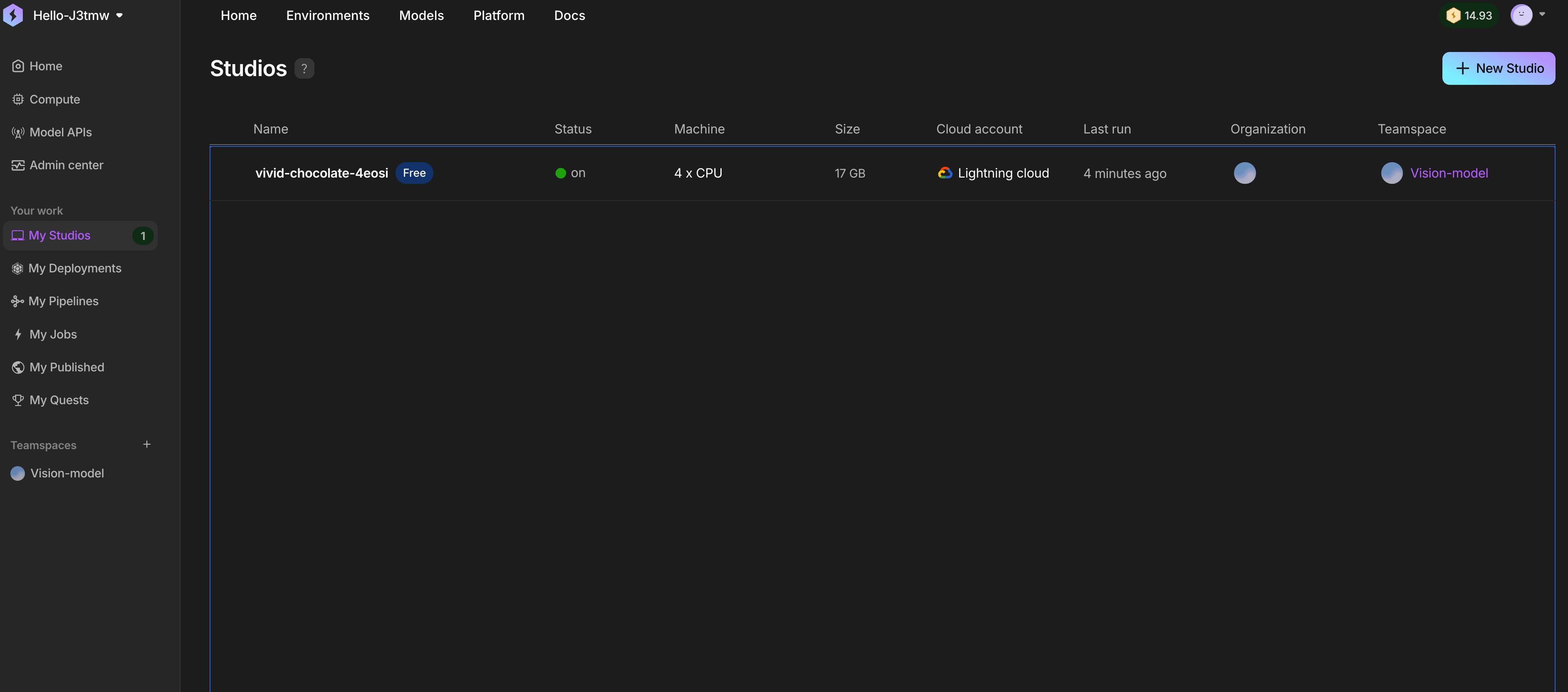
- This will give you option to select the studio type, Teamspace and Machine type. Studio type lets you pick preset environments such as Ai Development, Python, ComfyUI, prep data, Web app and Machine Learning. Teamspace is useful if you have separate space that you might want to share with separate teams and Machine type lets you pick between CPU, GPU or data prep usage. you will notice when you select these presets that machine type changes as well and this is based on what preset each of these environment are already built with.
- The easiest way to get started with ComfyUI would be to select ComfyUI preset. This will require to select the GPU . GPU's are not always readily available and hence might require to wait 10-15 mins for the setup. If you are just starting out and juts want to explore , default T4 GPU should be fine and you will be able to generate images using smaller models like SD1.5 (<5GB) with ease. To work with larger models and high quality images you will definitely need more powerful GPU's. If you try to generate high quality images with larger model files it might take upto 10 -15 mins to generate single image or just crash. So make sure you understand different file sizes and what to expect in terms of performance from your GPU.
- The great thing about selecting this preset is that you don't need to worry about git or downloading comfyUI from its remote repo. You also don't need to define port or run the project through the command line and deal with python code .Now this is great if you do not care for all that control. But having that control also allows you to configure and better understand the project.
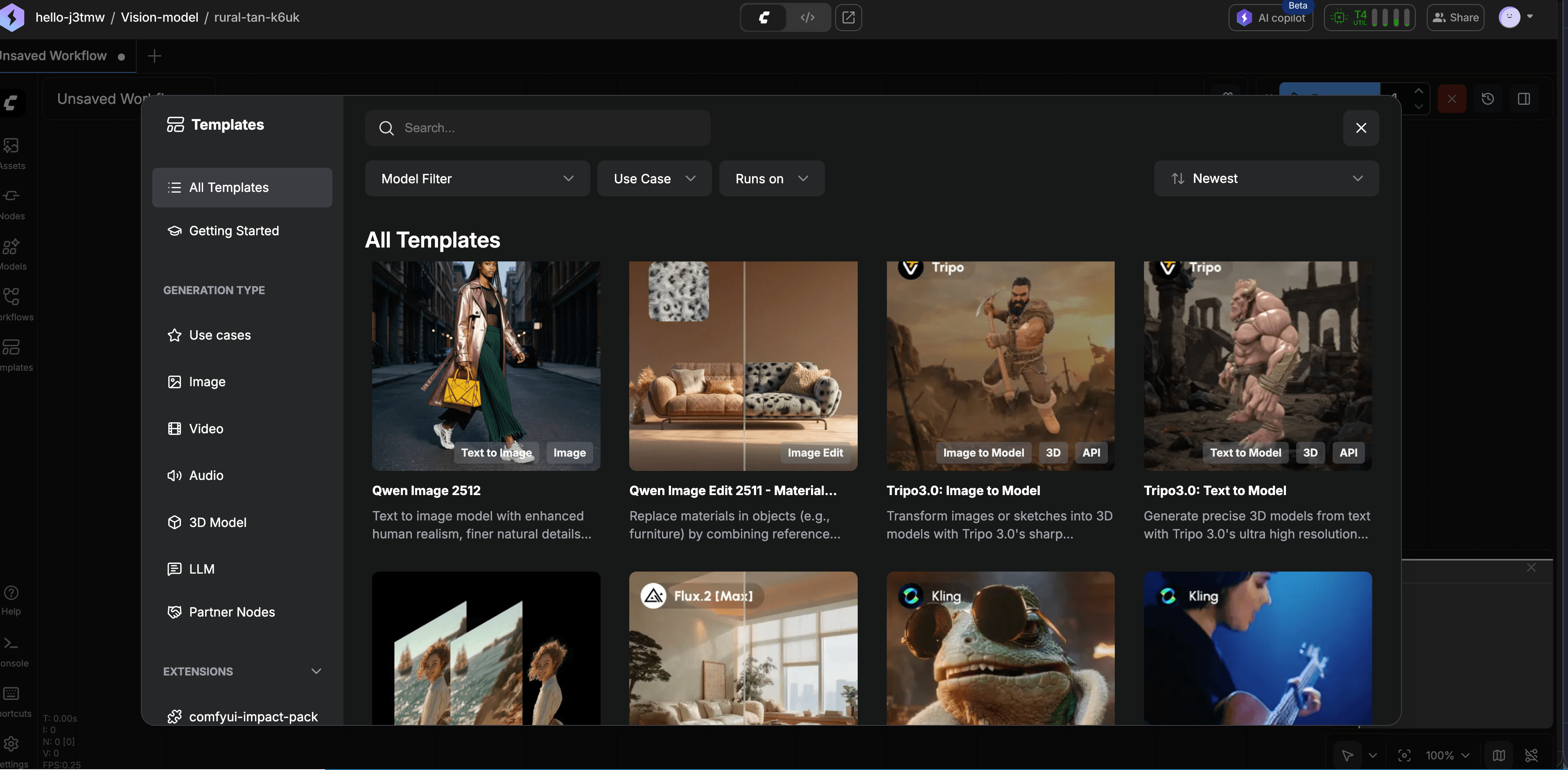
- The alternate way to setup ComfyUI environment is instead to start with a bare minimum python preset environment. This comes with all the essential development environment and tools and can be instantly started with the free CPU. Once the studio starts up, you are presented with a remote vscode like environment that fully supports git as well as additional features such as port configurations(defining ports,AI copilot etc)
